> ## Documentation Index
> Fetch the complete documentation index at: https://adapt.com/docs/llms.txt
> Use this file to discover all available pages before exploring further.
# Slack App
> Chat with Adapt directly in your Slack workspace
The Adapt Slack app brings AI-powered insights directly into your team's conversations. Ask questions, get answers, and take action without leaving Slack.
## Installation
### Add to Your Workspace
Go to **Settings > Integrations > Slack** in the Adapt web app, or click the **Add to Slack** button
Review the permissions and click **Allow** to add Adapt to your workspace
Select which channels Adapt can access (you can change this later)
### Permissions Required
Adapt requests these Slack permissions:
| Permission | Why It's Needed |
| ----------------------- | ---------------------------------------------- |
| **Read messages** | To understand questions and context |
| **Send messages** | To respond to your questions |
| **Access files** | To analyze uploaded spreadsheets and documents |
| **View workspace info** | To identify users and channels |
## Using Adapt in Slack
### Your Adapt account
If you do not have an Adapt account, your first direct message to Adapt or `@Adapt` mention creates one using the email address from your Slack profile. Adapt adds the account to your organization's workspace and sends you a direct message with a link to sign in.
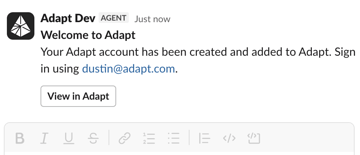 This automatic account creation is not available to Slack Connect users. Ask an admin in the organization that connected Adapt to invite you instead.
### Direct Messages
Message @Adapt directly for private conversations:
```
You: @Adapt What's our current MRR?
Adapt: Based on your Stripe data, your current MRR is $127,450.
That's up 8.3% from last month ($117,650).
Top contributors to growth:
• 12 new subscriptions (+$8,400)
• 3 upgrades (+$2,100)
• 2 churned accounts (-$700)
```
### Channel Mentions
Mention @Adapt in any channel to get insights visible to the team:
```
#sales-team
Sarah: How are we tracking against Q4 targets?
@Adapt: Q4 Sales Progress (as of today):
📊 Overall: $892K / $1.2M (74.3%)
• Enterprise: $523K / $600K (87.2%) ✅
• Mid-Market: $284K / $400K (71.0%)
• SMB: $85K / $200K (42.5%) ⚠️
17 business days remaining in quarter.
Need $308K more to hit target ($18.1K/day).
```
### Thread Replies
Keep complex discussions organized in threads:
```
Main channel: Q4 Planning Discussion
Thread:
You: @Adapt What's our biggest growth opportunity?
Adapt: Based on your data, the mid-market segment shows the highest potential...
Colleague: What about international expansion?
@Adapt: Looking at your geographic data...
You: Summarize this into action items
@Adapt: Here are the key action items from this discussion...
```
## Features
### File Analysis
Adapt can also generate images from a prompt or edit images you share in a thread. Just ask — the result is posted back into the conversation.
Drop files into your conversation for instant analysis:
**Supported formats:**
* CSV and Excel spreadsheets
* PDF documents
* JSON data files
* Images and screenshots
```
You: [uploads Q3_sales_data.csv]
@Adapt analyze this and find any trends
Adapt: Analysis of Q3 Sales Data:
Key findings:
1. Revenue peaked in August (+23% vs July)
2. Enterprise deals have 40% longer cycle times
3. West region outperformed by 15%
...
```
### Scheduled Reports
Set up automated reports delivered to Slack channels:
```
You: @Adapt Every Monday at 9am, post a weekly sales summary to this channel
Adapt: ✅ Scheduled! I'll post a weekly sales summary here every Monday at 9:00 AM.
The report will include:
• Total revenue vs target
• Top deals closed
• Pipeline changes
• Rep performance highlights
Want me to adjust what's included?
```
### Quick Actions
Adapt can take actions directly from Slack:
```
You: @Adapt Draft a follow-up email to Acme Corp about their renewal
Adapt: Here's a draft follow-up email:
---
Subject: Acme Corp Renewal - Next Steps
Hi [Contact],
I wanted to follow up on your upcoming renewal on [date].
Based on your usage over the past year...
---
Want me to adjust the tone or add anything specific?
```
### Response formatting
Adapt writes Slack replies in standard Markdown, and Slack renders them natively — headings, bold, links, and code all come through as formatting rather than raw symbols.
When an answer reports three or more records that share the same fields (metric grids, before-and-after values, per-item rows, comparisons), Adapt formats it as a real table instead of prose or bullets. Slack allows one table per message, so Adapt tables the most important set and summarizes the rest as bullets.
This applies everywhere Adapt writes in Slack: `@Adapt` mentions, direct messages, and [automations](/docs/features/automations) posting to a channel.
### Huddle transcripts
When a huddle ends in a channel Adapt is in, Adapt posts the full transcript into the huddle thread as `huddle-transcript.md` and keeps a searchable copy.
```
Huddle transcript
Jul 27, 2026
Participants: Casey Manos, Ryan Miyahara
[0:04] Casey Manos: Let's start with the billing page numbers.
[0:21] Ryan Miyahara: The effective balance and the ledger disagree...
```
Each turn is timestamped and attributed to a speaker, consecutive lines from the same person are merged, and the header carries the date and participant list. There's nothing to configure — invite Adapt to a channel and huddles held there get a transcript.
**Asking about a huddle**
Transcripts are searchable from Slack or the web app:
```
@Adapt what did we decide about pricing in yesterday's huddle?
```
Adapt filters by keyword, channel, and date, and centers the excerpt on the match rather than returning the start of the recording. Broad recap questions like "what happened today?" pull huddles in automatically alongside your other connected sources.
**Access**
Access is checked live against your Slack identity on every query, including guest accounts and Slack Connect channels. Adapt only returns huddles from channels you can already see in Slack. Deleting the transcript file in Slack also removes Adapt's stored copy.
**Turning it off**
Ask Adapt in Slack:
```
@Adapt stop posting huddle transcripts
```
This applies to the whole workspace, not a single channel. Re-enable it the same way. Admins can also toggle it through the API with `PATCH /api/orgs/{orgId}/integrations/{id}/huddle-transcripts-enabled`.
**Limits**
* Transcripts depend on Slack generating huddle notes. If your Slack plan doesn't produce them, there's nothing for Adapt to pick up.
* Capture is forward-looking. Huddles that ended before the feature was available aren't searchable.
### Proactive responses
By default, every channel and thread stays in **`@-mention only`** mode — Adapt only responds when you tag it, exactly the behavior that already existed. To let Adapt jump in on its own, opt a channel or thread into a different **trigger mode** by tagging Adapt and describing when it should respond:
```
@Adapt respond to any top-level message reporting a bug,
but skip casual chatter and emoji reactions.
```
Three modes are available:
| Mode | Behavior |
| -------------------- | ------------------------------------------------------------------------------------------------------------------------------ |
| **`@-mention only`** | Default. Adapt only responds when explicitly tagged. Same as before this feature shipped. |
| **Smart** | You write a one-line policy in plain English. Adapt evaluates each new message against the policy and replies when it matches. |
| **Always respond** | Adapt replies to every message in the scope. Best for dedicated agent channels. |
Trigger modes can be set at the **channel** level or overridden per **thread**. Thread-level settings take precedence, so you can opt a single thread out of a noisy channel — or the other way around.
To change or revert a mode, just tag `@Adapt` again and tell it what you want.
**Suggested rules when Adapt joins a channel**
When Adapt is invited to a channel, it reads the channel name, topic, purpose, recent messages, and your connected integrations, then posts up to three suggested trigger rules — each with an **Enable** button.
This automatic account creation is not available to Slack Connect users. Ask an admin in the organization that connected Adapt to invite you instead.
### Direct Messages
Message @Adapt directly for private conversations:
```
You: @Adapt What's our current MRR?
Adapt: Based on your Stripe data, your current MRR is $127,450.
That's up 8.3% from last month ($117,650).
Top contributors to growth:
• 12 new subscriptions (+$8,400)
• 3 upgrades (+$2,100)
• 2 churned accounts (-$700)
```
### Channel Mentions
Mention @Adapt in any channel to get insights visible to the team:
```
#sales-team
Sarah: How are we tracking against Q4 targets?
@Adapt: Q4 Sales Progress (as of today):
📊 Overall: $892K / $1.2M (74.3%)
• Enterprise: $523K / $600K (87.2%) ✅
• Mid-Market: $284K / $400K (71.0%)
• SMB: $85K / $200K (42.5%) ⚠️
17 business days remaining in quarter.
Need $308K more to hit target ($18.1K/day).
```
### Thread Replies
Keep complex discussions organized in threads:
```
Main channel: Q4 Planning Discussion
Thread:
You: @Adapt What's our biggest growth opportunity?
Adapt: Based on your data, the mid-market segment shows the highest potential...
Colleague: What about international expansion?
@Adapt: Looking at your geographic data...
You: Summarize this into action items
@Adapt: Here are the key action items from this discussion...
```
## Features
### File Analysis
Adapt can also generate images from a prompt or edit images you share in a thread. Just ask — the result is posted back into the conversation.
Drop files into your conversation for instant analysis:
**Supported formats:**
* CSV and Excel spreadsheets
* PDF documents
* JSON data files
* Images and screenshots
```
You: [uploads Q3_sales_data.csv]
@Adapt analyze this and find any trends
Adapt: Analysis of Q3 Sales Data:
Key findings:
1. Revenue peaked in August (+23% vs July)
2. Enterprise deals have 40% longer cycle times
3. West region outperformed by 15%
...
```
### Scheduled Reports
Set up automated reports delivered to Slack channels:
```
You: @Adapt Every Monday at 9am, post a weekly sales summary to this channel
Adapt: ✅ Scheduled! I'll post a weekly sales summary here every Monday at 9:00 AM.
The report will include:
• Total revenue vs target
• Top deals closed
• Pipeline changes
• Rep performance highlights
Want me to adjust what's included?
```
### Quick Actions
Adapt can take actions directly from Slack:
```
You: @Adapt Draft a follow-up email to Acme Corp about their renewal
Adapt: Here's a draft follow-up email:
---
Subject: Acme Corp Renewal - Next Steps
Hi [Contact],
I wanted to follow up on your upcoming renewal on [date].
Based on your usage over the past year...
---
Want me to adjust the tone or add anything specific?
```
### Response formatting
Adapt writes Slack replies in standard Markdown, and Slack renders them natively — headings, bold, links, and code all come through as formatting rather than raw symbols.
When an answer reports three or more records that share the same fields (metric grids, before-and-after values, per-item rows, comparisons), Adapt formats it as a real table instead of prose or bullets. Slack allows one table per message, so Adapt tables the most important set and summarizes the rest as bullets.
This applies everywhere Adapt writes in Slack: `@Adapt` mentions, direct messages, and [automations](/docs/features/automations) posting to a channel.
### Huddle transcripts
When a huddle ends in a channel Adapt is in, Adapt posts the full transcript into the huddle thread as `huddle-transcript.md` and keeps a searchable copy.
```
Huddle transcript
Jul 27, 2026
Participants: Casey Manos, Ryan Miyahara
[0:04] Casey Manos: Let's start with the billing page numbers.
[0:21] Ryan Miyahara: The effective balance and the ledger disagree...
```
Each turn is timestamped and attributed to a speaker, consecutive lines from the same person are merged, and the header carries the date and participant list. There's nothing to configure — invite Adapt to a channel and huddles held there get a transcript.
**Asking about a huddle**
Transcripts are searchable from Slack or the web app:
```
@Adapt what did we decide about pricing in yesterday's huddle?
```
Adapt filters by keyword, channel, and date, and centers the excerpt on the match rather than returning the start of the recording. Broad recap questions like "what happened today?" pull huddles in automatically alongside your other connected sources.
**Access**
Access is checked live against your Slack identity on every query, including guest accounts and Slack Connect channels. Adapt only returns huddles from channels you can already see in Slack. Deleting the transcript file in Slack also removes Adapt's stored copy.
**Turning it off**
Ask Adapt in Slack:
```
@Adapt stop posting huddle transcripts
```
This applies to the whole workspace, not a single channel. Re-enable it the same way. Admins can also toggle it through the API with `PATCH /api/orgs/{orgId}/integrations/{id}/huddle-transcripts-enabled`.
**Limits**
* Transcripts depend on Slack generating huddle notes. If your Slack plan doesn't produce them, there's nothing for Adapt to pick up.
* Capture is forward-looking. Huddles that ended before the feature was available aren't searchable.
### Proactive responses
By default, every channel and thread stays in **`@-mention only`** mode — Adapt only responds when you tag it, exactly the behavior that already existed. To let Adapt jump in on its own, opt a channel or thread into a different **trigger mode** by tagging Adapt and describing when it should respond:
```
@Adapt respond to any top-level message reporting a bug,
but skip casual chatter and emoji reactions.
```
Three modes are available:
| Mode | Behavior |
| -------------------- | ------------------------------------------------------------------------------------------------------------------------------ |
| **`@-mention only`** | Default. Adapt only responds when explicitly tagged. Same as before this feature shipped. |
| **Smart** | You write a one-line policy in plain English. Adapt evaluates each new message against the policy and replies when it matches. |
| **Always respond** | Adapt replies to every message in the scope. Best for dedicated agent channels. |
Trigger modes can be set at the **channel** level or overridden per **thread**. Thread-level settings take precedence, so you can opt a single thread out of a noisy channel — or the other way around.
To change or revert a mode, just tag `@Adapt` again and tell it what you want.
**Suggested rules when Adapt joins a channel**
When Adapt is invited to a channel, it reads the channel name, topic, purpose, recent messages, and your connected integrations, then posts up to three suggested trigger rules — each with an **Enable** button.
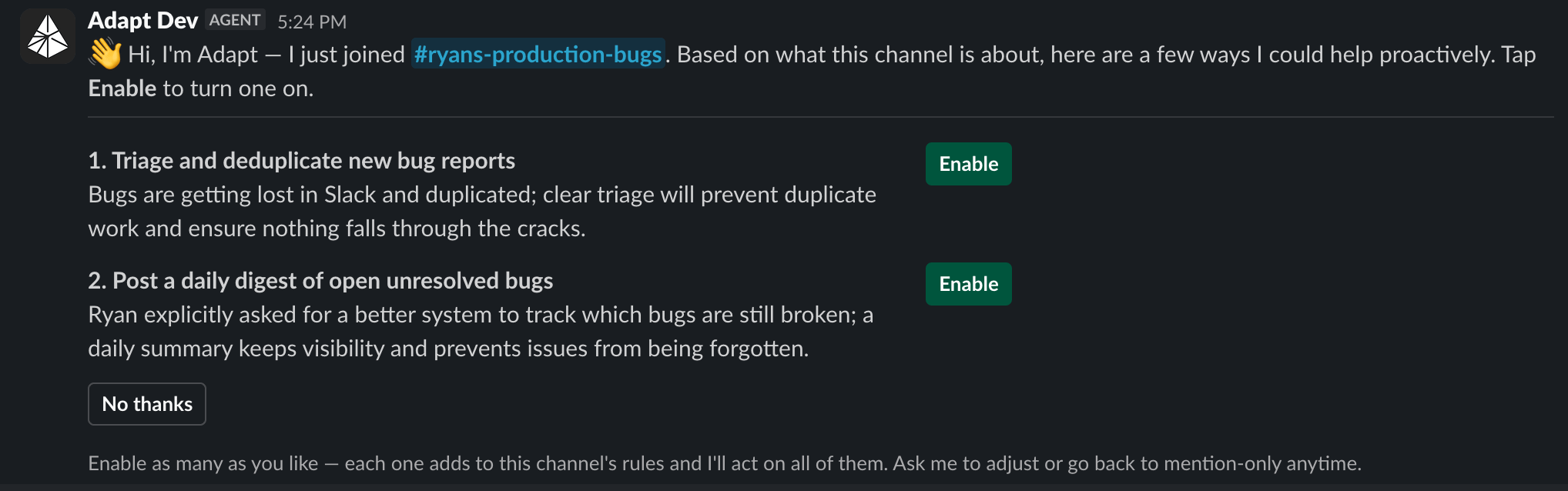 * Anyone in the channel can tap **Enable**. Enabling a second suggestion adds to the channel's rules instead of replacing the first, and Adapt acts on all of them.
* **No thanks** leaves the channel on `@-mention only`.
* Suggestions stay actionable for seven days.
* Adapt stays silent when it can't see a clear way to help, when the channel already has a trigger mode set, or in externally shared Slack Connect channels.
Removing Adapt from a channel clears that channel's trigger rules.
**Example smart policies**
* *"Respond to any top-level message announcing that something was shipped, released, or rolled out to production."*
* *"Respond when a customer asks a how-to question about pricing or onboarding."*
* *"Respond to top-level bug reports, including screenshots, screen recordings, and short messages like 'broken' or 'doesn't work'."*
A useful pattern for busy general or team channels is to scope behavior by message location, so Adapt stays out of side conversations between teammates:
> *"Only reply as a top-level message when you're tagged. In a thread, reply to messages — but only ones where it's clear humans aren't talking to other humans."*
Smart mode is most powerful when paired with [skills](/docs/features/skills) and [automations](/docs/features/automations): the policy decides when to wake Adapt up, and the skill decides what to do once it's awake.
### Your own branded app
Run Adapt in Slack under your organization's name and icon, so your team tags `@yourcompany` instead of `@Adapt`. Same agent, same integrations, same knowledge — your identity. **Settings > Integrations > Slack** offers two ways to appear in Slack:
| Option | What it is |
| -------------------- | ---------------------------------------------------------------------- |
| **Adapt Slack app** | Connect in one click using Adapt's name and icon. |
| **Your branded app** | Use your organization's name, icon, and description, powered by Adapt. |
#### Before you start
* **In Slack**: permission to create an app in your workspace. Some workspaces restrict app creation to owners — check before you begin.
* **In Adapt**: admin access to your organization's settings.
* **On hand**: the name your team will tag (up to 35 characters), a one-line description (up to 140 characters), and a square app icon.
Setup takes about 10 minutes and moves between two tabs — Adapt and `api.slack.com`. Keep both open.
#### Set up a branded app
In Adapt, go to **Settings > Integrations > Slack** and click **Set up branded app**. The wizard has three stages: **Customize**, **Create app**, **Connect**.
On the **Customize** step, fill in:
* **Display name** — what teammates see and tag in Slack. Defaults to your organization name.
* **Description** — one line shown in Slack alongside your app. Defaults to "Your AI teammate for work, powered by Adapt."
Click **Prepare manifest**. Adapt builds a Slack app manifest with the permissions, event subscriptions, and callback URLs already filled in for your organization.
Click **Copy manifest**. Leave the JSON as-is — its URLs point back to your organization, so an edited manifest won't connect.
Click **Open Slack**, then:
1. Choose **From a manifest**.
2. Pick the workspace the app will live in and click **Next**.
3. Paste the manifest JSON, click **Next**, then **Create**.
In your new app, go to **Basic Information > Display Information**, upload your app icon, and pick a background color. This is the avatar your team sees on every reply.
Still in Slack, open **Basic Information > App Credentials** and copy each value into the matching field in Adapt:
| Slack | Adapt | Notes |
| -------------- | ------------------ | -------------------------------------- |
| App ID | **App ID** | Starts with `A` |
| Client ID | **Client ID** | Looks like `123456789.123456789` |
| Client Secret | **Client secret** | Click **Show** in Slack before copying |
| Signing Secret | **Signing secret** | Click **Show** in Slack before copying |
Copy one value at a time, then click **Save and continue**. Adapt encrypts both secrets on save and never displays them again.
Click **Authorize branded app**, then **Allow** in Slack. Adapt shows **Branded app connected** when the install lands.
Run `/invite @yourcompany` in each channel you want it in, then set [trigger modes](#proactive-responses) the same way you would for Adapt.
#### What the manifest configures
The generated manifest is a complete app definition, so there's nothing to configure by hand in Slack:
* Bot and user scopes matching the Adapt Slack app
* Event subscriptions and an interactivity URL pointing at Adapt, scoped to your organization
* The OAuth redirect URL Adapt uses to complete installation
* App Home, the messages tab, and an agent view with suggested prompts
* Token rotation on; Socket Mode and org-wide deploy off
The app isn't distributed to the Slack Marketplace, so it installs only in the workspace where it was created. To brand a second workspace, run the setup again there.
#### Running alongside the Adapt app
Both apps can be connected to the same workspace, which makes migration safe. Conversations that start with your branded bot stay with it, and Adapt handles messages started elsewhere. If a thread ends up owned by both apps, neither responds.
To hand channel rules and scheduled tasks over to your branded app, open the connection's menu and choose **Move configuration**. It's a move, not a copy — two apps holding the same rule would both answer the same message. The preview shows which channel rules move, which the branded app already covers, and how many scheduled tasks re-point.
#### Rename or update branding later
Renaming the app in Adapt does not rename the bot in Slack. Change the name at `api.slack.com/apps` under **App Home** and **Basic Information > Display Information**. When the two names drift, Adapt flags it with a **Rename in Slack** shortcut.
#### Rotate or remove credentials
Use the **⋯** menu on the Slack integration header:
* **Edit** — replace the stored credentials after rotating a secret in Slack.
* **Remove** — delete the saved credentials. Disconnect every branded installation first.
#### Troubleshooting
Paste the entire JSON, including the outer braces, into the **From a manifest** flow. If you edited it or changed your app name in Adapt afterward, go back to step 1 and click **Prepare manifest** again.
Your workspace restricts app creation. Ask a Slack workspace owner to create the app from the manifest and send you the four credentials.
Confirm the install finished (**Branded app connected** in Adapt), that the bot is invited to the channel, and that the App ID in Adapt matches the app you created. Credentials copied from a different app fail silently.
Slack owns the bot name after creation. Rename it at `api.slack.com/apps` under **App Home** and **Display Information**.
Each app evaluates its own trigger rules. Use **Move configuration** to give the branded app the channel rules and scheduled tasks, so only one app owns each channel.
## Best Practices
### When to Use Slack vs Web App
| Use Slack when... | Use the web app when... |
| ------------------------- | ------------------------ |
| Quick questions | Deep analysis sessions |
| Team discussions | Complex multi-step tasks |
| Sharing insights publicly | Private research |
| Getting notified | Managing integrations |
### Tips for Better Responses
"Check HubSpot for..." or "Look at our Snowflake data for..."
"Last week", "Q4 2024", "Past 30 days"
"Show me a table", "Summarize in bullet points", "Create a chart"
Keep related questions in the same thread to maintain context
## Channel Configuration
### Adding Adapt to Channels
Invite Adapt to channels where you want it available:
1. Go to the channel
2. Type `/invite @Adapt`
3. Adapt can now respond to mentions in that channel
### Restricting Access
Control which channels Adapt can access:
1. Go to **Settings > Integrations > Slack** in the web app
2. Select **Manage Channels**
3. Choose allowed or blocked channels
## Troubleshooting
* Make sure Adapt is invited to the channel
* Check that you're mentioning @Adapt correctly
* Verify the Slack integration is connected in Settings
* Ensure the relevant integration is set up (e.g., Snowflake, HubSpot)
* Check your organization's permissions
* Complex queries take longer to process
* Large file uploads require more analysis time
## Next Steps
Connect data sources for richer Slack responses
Automate reports to Slack channels
* Anyone in the channel can tap **Enable**. Enabling a second suggestion adds to the channel's rules instead of replacing the first, and Adapt acts on all of them.
* **No thanks** leaves the channel on `@-mention only`.
* Suggestions stay actionable for seven days.
* Adapt stays silent when it can't see a clear way to help, when the channel already has a trigger mode set, or in externally shared Slack Connect channels.
Removing Adapt from a channel clears that channel's trigger rules.
**Example smart policies**
* *"Respond to any top-level message announcing that something was shipped, released, or rolled out to production."*
* *"Respond when a customer asks a how-to question about pricing or onboarding."*
* *"Respond to top-level bug reports, including screenshots, screen recordings, and short messages like 'broken' or 'doesn't work'."*
A useful pattern for busy general or team channels is to scope behavior by message location, so Adapt stays out of side conversations between teammates:
> *"Only reply as a top-level message when you're tagged. In a thread, reply to messages — but only ones where it's clear humans aren't talking to other humans."*
Smart mode is most powerful when paired with [skills](/docs/features/skills) and [automations](/docs/features/automations): the policy decides when to wake Adapt up, and the skill decides what to do once it's awake.
### Your own branded app
Run Adapt in Slack under your organization's name and icon, so your team tags `@yourcompany` instead of `@Adapt`. Same agent, same integrations, same knowledge — your identity. **Settings > Integrations > Slack** offers two ways to appear in Slack:
| Option | What it is |
| -------------------- | ---------------------------------------------------------------------- |
| **Adapt Slack app** | Connect in one click using Adapt's name and icon. |
| **Your branded app** | Use your organization's name, icon, and description, powered by Adapt. |
#### Before you start
* **In Slack**: permission to create an app in your workspace. Some workspaces restrict app creation to owners — check before you begin.
* **In Adapt**: admin access to your organization's settings.
* **On hand**: the name your team will tag (up to 35 characters), a one-line description (up to 140 characters), and a square app icon.
Setup takes about 10 minutes and moves between two tabs — Adapt and `api.slack.com`. Keep both open.
#### Set up a branded app
In Adapt, go to **Settings > Integrations > Slack** and click **Set up branded app**. The wizard has three stages: **Customize**, **Create app**, **Connect**.
On the **Customize** step, fill in:
* **Display name** — what teammates see and tag in Slack. Defaults to your organization name.
* **Description** — one line shown in Slack alongside your app. Defaults to "Your AI teammate for work, powered by Adapt."
Click **Prepare manifest**. Adapt builds a Slack app manifest with the permissions, event subscriptions, and callback URLs already filled in for your organization.
Click **Copy manifest**. Leave the JSON as-is — its URLs point back to your organization, so an edited manifest won't connect.
Click **Open Slack**, then:
1. Choose **From a manifest**.
2. Pick the workspace the app will live in and click **Next**.
3. Paste the manifest JSON, click **Next**, then **Create**.
In your new app, go to **Basic Information > Display Information**, upload your app icon, and pick a background color. This is the avatar your team sees on every reply.
Still in Slack, open **Basic Information > App Credentials** and copy each value into the matching field in Adapt:
| Slack | Adapt | Notes |
| -------------- | ------------------ | -------------------------------------- |
| App ID | **App ID** | Starts with `A` |
| Client ID | **Client ID** | Looks like `123456789.123456789` |
| Client Secret | **Client secret** | Click **Show** in Slack before copying |
| Signing Secret | **Signing secret** | Click **Show** in Slack before copying |
Copy one value at a time, then click **Save and continue**. Adapt encrypts both secrets on save and never displays them again.
Click **Authorize branded app**, then **Allow** in Slack. Adapt shows **Branded app connected** when the install lands.
Run `/invite @yourcompany` in each channel you want it in, then set [trigger modes](#proactive-responses) the same way you would for Adapt.
#### What the manifest configures
The generated manifest is a complete app definition, so there's nothing to configure by hand in Slack:
* Bot and user scopes matching the Adapt Slack app
* Event subscriptions and an interactivity URL pointing at Adapt, scoped to your organization
* The OAuth redirect URL Adapt uses to complete installation
* App Home, the messages tab, and an agent view with suggested prompts
* Token rotation on; Socket Mode and org-wide deploy off
The app isn't distributed to the Slack Marketplace, so it installs only in the workspace where it was created. To brand a second workspace, run the setup again there.
#### Running alongside the Adapt app
Both apps can be connected to the same workspace, which makes migration safe. Conversations that start with your branded bot stay with it, and Adapt handles messages started elsewhere. If a thread ends up owned by both apps, neither responds.
To hand channel rules and scheduled tasks over to your branded app, open the connection's menu and choose **Move configuration**. It's a move, not a copy — two apps holding the same rule would both answer the same message. The preview shows which channel rules move, which the branded app already covers, and how many scheduled tasks re-point.
#### Rename or update branding later
Renaming the app in Adapt does not rename the bot in Slack. Change the name at `api.slack.com/apps` under **App Home** and **Basic Information > Display Information**. When the two names drift, Adapt flags it with a **Rename in Slack** shortcut.
#### Rotate or remove credentials
Use the **⋯** menu on the Slack integration header:
* **Edit** — replace the stored credentials after rotating a secret in Slack.
* **Remove** — delete the saved credentials. Disconnect every branded installation first.
#### Troubleshooting
Paste the entire JSON, including the outer braces, into the **From a manifest** flow. If you edited it or changed your app name in Adapt afterward, go back to step 1 and click **Prepare manifest** again.
Your workspace restricts app creation. Ask a Slack workspace owner to create the app from the manifest and send you the four credentials.
Confirm the install finished (**Branded app connected** in Adapt), that the bot is invited to the channel, and that the App ID in Adapt matches the app you created. Credentials copied from a different app fail silently.
Slack owns the bot name after creation. Rename it at `api.slack.com/apps` under **App Home** and **Display Information**.
Each app evaluates its own trigger rules. Use **Move configuration** to give the branded app the channel rules and scheduled tasks, so only one app owns each channel.
## Best Practices
### When to Use Slack vs Web App
| Use Slack when... | Use the web app when... |
| ------------------------- | ------------------------ |
| Quick questions | Deep analysis sessions |
| Team discussions | Complex multi-step tasks |
| Sharing insights publicly | Private research |
| Getting notified | Managing integrations |
### Tips for Better Responses
"Check HubSpot for..." or "Look at our Snowflake data for..."
"Last week", "Q4 2024", "Past 30 days"
"Show me a table", "Summarize in bullet points", "Create a chart"
Keep related questions in the same thread to maintain context
## Channel Configuration
### Adding Adapt to Channels
Invite Adapt to channels where you want it available:
1. Go to the channel
2. Type `/invite @Adapt`
3. Adapt can now respond to mentions in that channel
### Restricting Access
Control which channels Adapt can access:
1. Go to **Settings > Integrations > Slack** in the web app
2. Select **Manage Channels**
3. Choose allowed or blocked channels
## Troubleshooting
* Make sure Adapt is invited to the channel
* Check that you're mentioning @Adapt correctly
* Verify the Slack integration is connected in Settings
* Ensure the relevant integration is set up (e.g., Snowflake, HubSpot)
* Check your organization's permissions
* Complex queries take longer to process
* Large file uploads require more analysis time
## Next Steps
Connect data sources for richer Slack responses
Automate reports to Slack channels