> ## Documentation Index
> Fetch the complete documentation index at: https://adapt.com/docs/llms.txt
> Use this file to discover all available pages before exploring further.
# Automations
> Automate recurring queries, reports, and workflows on any cadence
Schedule any Adapt query to run automatically — on a recurring cadence, or once at a specific future time. Each execution runs in a fresh chat with your integration access, and results land wherever you want them: a Slack DM, a Slack channel, or the web app.
If you find yourself asking the same question every Monday morning, stop doing that.
## How it works
Describe the automation in plain English — the same way you'd ask it manually. Adapt parses the schedule, confirms it back to you, and starts running it on its own.
```
Every Monday at 9am, summarize last week's closed deals
and post it to #sales.
```
```
Every morning at 8am, pull any new critical errors from Sentry
and DM them to me.
```
```
On the first of every month, generate a revenue report
and share it as a new chat.
```
Each execution starts a **brand-new chat**. The automation has no memory of prior runs — if you want it to compare against last week, say so in the prompt, and Adapt will pull the prior data itself.
## Creating an automation
Two ways in, both plain English:
* **From any chat** — just say it. "Every Monday at 9am, summarize last week's closed deals and post it to #sales."
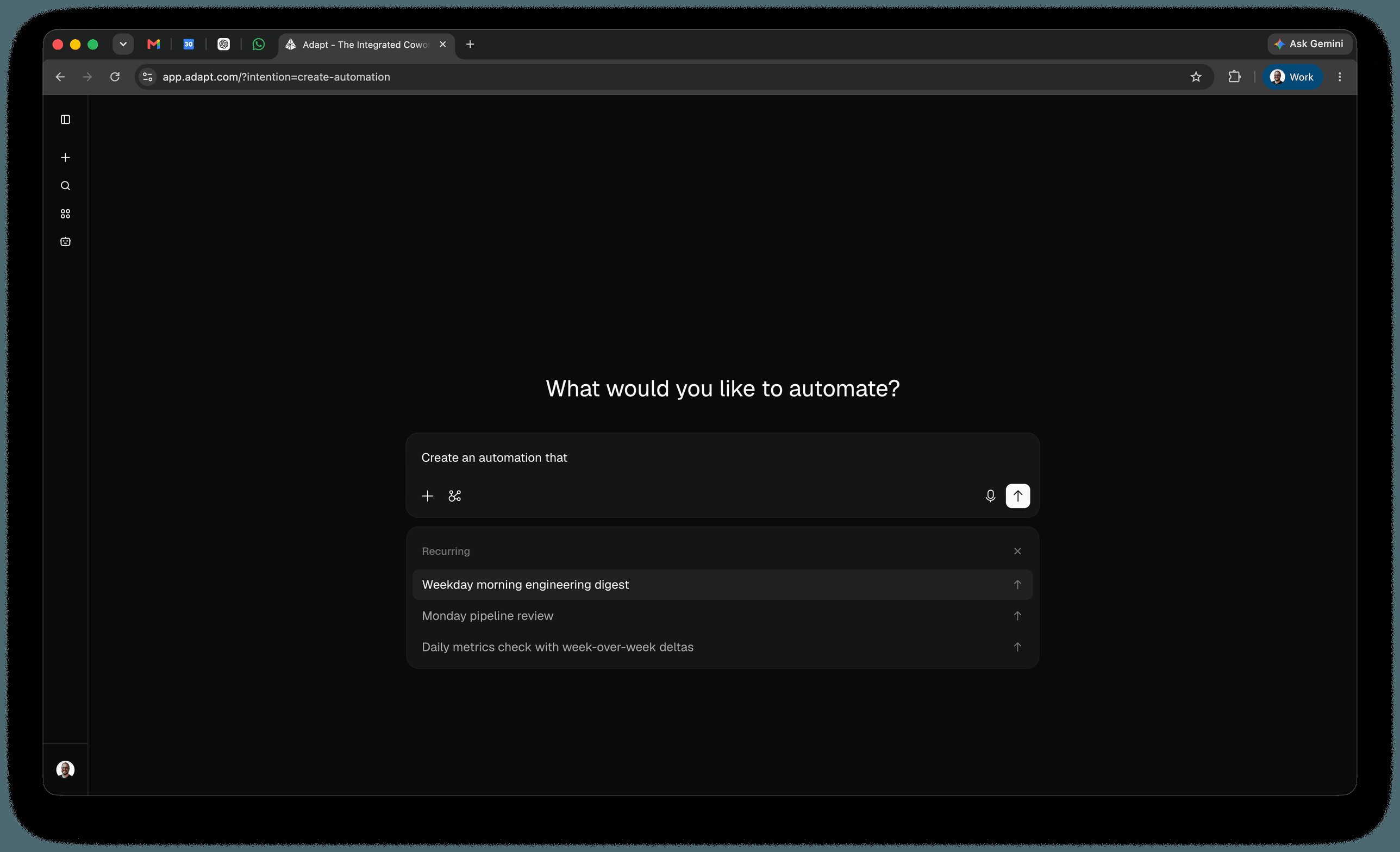
* **From the Automations page** — click **New automation**. Adapt opens a chat headed **What would you like to automate?** with the composer pre-filled with `Create an automation that`. Finish the sentence.
Under the composer, three groups of prompt examples — **Recurring**, **One-time**, and **Event-based** — show what good automations look like. Open a group and pick one to run it as a starting point, then refine it in the same chat.
 ## Schedule types
### Recurring automations
Daily, weekly, monthly, or any custom cadence. Describe it in plain language or use a cron expression.
```
Every weekday at 9am, list PRs that need review and any blocked issues.
```
```
Every other Wednesday at 2pm, draft a sprint retro from #engineering.
```
### One-time automations
Schedule something to run once at a specific future moment:
```
In 3 hours, check if the deploy finished and summarize any new errors.
```
```
Tomorrow at 7am, summarize what happened in #incidents overnight.
```
### Event-based automations
Trigger a run from an outside system instead of the clock. Describe the trigger and Adapt creates a webhook, then gives you the URL and credentials to paste into the sending service.
```
When a new lead is created in my CRM, post an alert to #sales with their
name, company, role, and a two-sentence summary of what the company does.
```
Every request the webhook receives shows up in its event history on the webhook's page.
#### Connecting the sending service
Open the webhook and click **Connect**. The dialog gives you the credentials in whichever shape the sending service accepts:
* **URL secret** — one ready-to-paste URL with the secret in the query string: `https://app.adapt.com/api/webhook/custom/{webhookId}?secret={secret}`. Use this for services that only let you enter a URL and can't add headers, like Grain, Resend, or Typefully. Adapt also accepts the secret in an `access_token` or `token` parameter if the provider fixes the name.
* **Basic auth** — the connection URL, a username, and a password as separate fields, sent as a standard HTTP Basic `Authorization` header. Use this for callers you control: curl, scripts, or internal tooling.
Pick one. Sending any `Authorization` header turns off the query-string secret, so a request with a bad header fails rather than falling back to the URL secret.
```bash theme={null}
# URL secret
curl -X POST "https://app.adapt.com/api/webhook/custom/{webhookId}?secret={secret}" \
-H "Content-Type: application/json" \
-d '{"event": "lead.created", "name": "Ada Lovelace"}'
# Basic auth
curl -X POST "https://app.adapt.com/api/webhook/custom/{webhookId}" \
-u "{username}:{password}" \
-H "Content-Type: application/json" \
-d '{"event": "lead.created", "name": "Ada Lovelace"}'
```
The secret stays masked in the dialog. Adapt fetches the plaintext only when you copy it or reveal it, and drops it when you close the dialog. **Regenerate secret** issues a new one and invalidates the old one immediately, so update any service already pointed at the webhook. Webhooks created before Adapt stored a retrievable copy show "Secret is no longer readable" — regenerate to get a working secret.
#### Rate limits and responses
Each webhook accepts a set number of requests per window — 1 request per 60 seconds by default. Change it by asking Adapt, or in the webhook's settings.
| Status | Meaning |
| ------ | -------------------------------------------------------------------------------------------------------- |
| `200` | Accepted. Adapt starts the run in a new chat. |
| `401` | Authentication failed — wrong secret, wrong username or password, or a malformed `Authorization` header. |
| `403` | The webhook is disabled. |
| `404` | No webhook with that ID. |
| `429` | Rate limit exceeded. |
Adapt responds as soon as it accepts the payload and runs the prompt afterward, so a `200` means the payload was received, not that the run has finished.
## Cron expressions
For precise control, Adapt accepts standard 5-field cron expressions (`minute hour day month weekday`). The minimum interval between recurring runs is **15 minutes**.
| Expression | Runs |
| -------------- | ----------------------------------- |
| `0 9 * * *` | Every day at 9:00 AM |
| `0 9 * * 1` | Every Monday at 9:00 AM |
| `0 9 * * 1-5` | Weekdays at 9:00 AM |
| `*/30 * * * *` | Every 30 minutes |
| `0 */4 * * *` | Every 4 hours, on the hour |
| `0 0 1 * *` | First day of each month at midnight |
Times are interpreted in your account's timezone.
## Delivery options
Choose where results land:
* **Slack DM** — Direct message from the Adapt bot
* **Slack channel** — Post to a specific channel (name the channel in your prompt)
* **New chat** — Results appear as a new conversation in the [web app](/docs/platform/web-app)
If you don't specify a destination, results post wherever you scheduled the automation from. Automations scheduled inside a Slack thread will reply in that thread by default; automations scheduled in the web app create a new chat.
### Result delivery
Every automation also carries a **result delivery** setting that can send the finished result somewhere other than the channel it was created in:
| Destination | Where the result lands |
| -------------------- | ------------------------------------------------------------------------------------------------------------------------------ |
| **Original channel** | Wherever the automation was created — a Slack thread, a channel, or a new chat in the web app. The default. |
| **Email** | An email to your verified account address. The automation's name is the subject, and a button in the email opens the full run. |
| **Messages** | A text in your Adapt [Messages](/docs/platform/messaging) thread — iMessage on iPhone, RCS on Android. |
| **No notification** | Nothing is sent. The run still happens and appears in the automation's run history. |
Email and Messages deliver to the person who created the automation, so they're best for automations you run for yourself. Both have prerequisites:
* **Email** — your account email must be verified.
* **Messages** — your phone must be connected under [Settings > Integrations > Messaging](https://app.adapt.com/settings/integrations/imessage), and you need an existing text thread with Adapt. If you delete that thread, the destination goes unavailable; text Adapt once to bring it back.
Set it from the automation's page — the delivery selector sits in the header next to the status control — or ask in any chat:
```
Text me the results of my morning PR digest instead of posting here.
```
```
Email me the Monday sales summary.
```
The selector shows what each destination resolves to (a masked phone number for Messages, "Not connected" when it isn't set up) and blocks anything that can't receive. Only the automation's creator and org owners and admins can change the setting. If a destination becomes unavailable between runs, Adapt falls back to the original channel rather than dropping the result.
New automations also inherit the delivery destination of the chat they were created in. If you've routed a chat to your email, automations you schedule from it default to email. See [Result delivery](/docs/docs/platform/notifications).
## Visibility
Each automation is either **private** or **shared**:
* **Private** — Only you can see the chats the automation creates. Useful for personal reminders, inbox triage, or anything tied to your own credentials.
* **Shared** — Chats created by the automation are visible to your whole organization. Useful for team standups, exec reports, or any automation whose output the team should be able to read, fork, and follow up on.
Automations inherit the visibility of the chat you scheduled them from. To change it, just ask:
```
Make my Monday sales summary shared with the team.
```
## Permissions
Automations run with the **same integration permissions as your account** at the moment they execute. If you disconnect HubSpot or lose access to a Slack channel, any automation that depends on it will fail or skip that step on its next run.
For automations the whole team relies on, schedule them from an account whose integration access is unlikely to change.
## Managing your automations
### View your automations
```
What recurring automations do I have running?
```
```
Show me every automation in the org.
```
You can also browse and manage all of your automations under **Automations** in the left nav of the web app. Search by name or prompt, filter by creator, visibility, or type, and sort by **Newest**, **Last run**, **Top usage (30 days)**, or **Top usage (all time)**.
### See past runs
Click any automation to open its **Run history** — every execution Adapt has fired for that automation, with start time, title, status, and the credits that run cost. Open any row to jump into the chat Adapt produced for that run, with the full transcript, sources, and artifacts. The same page has a **Details** panel showing status, visibility, schedule, and creator, plus controls to edit or delete the automation.
Per-run chats don't appear in your main sidebar — only the chats you start directly do. This keeps high-frequency automations (every 15 minutes, hourly digests, overnight summaries) from drowning out your active work.
Shared automation runs are visible to everyone in your org. Private automation runs are only visible to the person who created the automation.
### Track cost and usage
Every automation reports what it consumes, so a runaway cadence shows up before your invoice does.
**In the list** — the **Usage** column shows credits consumed in the last 30 days, with the all-time total underneath. Automations that have never run read "No runs". Sort by **Top usage (30 days)** or **Top usage (all time)** to put the heaviest spenders first. Scheduled tasks and webhooks are ranked together.
**On the automation** — three figures sit above the run history:
| Stat | What it covers |
| -------------- | ----------------------------------------------------------------------------- |
| **All time** | Total credits the automation has consumed since it was created |
| **This cycle** | Credits in your current billing cycle (**Last 30 days** if you have no cycle) |
| **Avg / run** | All-time credits divided by the runs that incurred cost |
**Per run** — the **Cost** column in the run history shows credits for each individual execution, so one expensive run stands out from the routine ones. Open the row to see the chat behind it. Webhook event histories show credits per delivered event the same way.
Credits map to spend the same way everywhere else in Adapt. See [Usage-based pricing](/docs/pricing/usage-based-pricing) for how credits are calculated.
### Edit an automation
Automations aren't write-once — change the schedule, the prompt, or the delivery target at any time. Ask in any chat, or open the automation and choose **Edit**, which starts a chat pre-filled with `Edit automation "{name}" to` for you to finish. Webhooks work the same way.
```
Change the Monday sales summary to run at 8am instead of 9am.
```
```
Update the daily Sentry digest to also include any new bugs filed in Linear.
```
```
Have my weekly engineering summary post to #eng-leads instead of DMing me.
```
### Pause or cancel
```
Pause the Monday sales summary for the next two weeks.
```
```
Cancel the daily Slack report.
```
## Pairing with skills and proactive Slack
Automations become much more powerful when combined with the rest of the platform:
* **[Skills](/docs/features/skills)** define *how* a recurring automation should be done — the playbook, the data sources, the format. Scheduling an automation that says "run the weekly-engaged-leads-by-source report and post it to #marketing" gives you a consistent, repeatable deliverable instead of a one-off summary that drifts in shape week over week.
* **[Proactive Slack mode](/docs/platform/slack-app#proactive-responses)** decides *when* Adapt should jump in based on what's happening in a channel. Automations decide *when* Adapt should jump in based on the clock. They compose well: a daily 9am rollup of overnight incidents, plus a proactive policy in `#incidents` that wakes Adapt up the moment a new one lands.
## Example use cases
### Engineering
```
Every weekday at 9am, list open PRs older than 48 hours
and any P0/P1 bugs filed in Linear since yesterday.
```
### Sales
```
Every Monday at 8am, summarize deals that moved stage last week,
deals that went quiet for 7+ days, and any new opportunities
created in HubSpot. Post it to #sales-leadership.
```
### Customer success
```
Every Friday at 4pm, pull the week's new support tickets from Zendesk,
group them by theme, and flag any account that filed more than 3.
```
### Competitive monitoring
```
Every day at 7am, search the web for news about [competitor]
and DM me anything substantive.
```
### Exec reporting
```
On the first business day of every month, assemble a one-page
executive summary from finance, product, and sales data.
Share it as a new chat.
```
## Limits
* **Minimum recurring interval**: 15 minutes
* **One-time delay window**: 60 seconds to 7 days in the future
* **Cron format**: Standard 5-field expressions (minute, hour, day, month, weekday)
* **Permissions**: Automations run with your account's integration access at execution time
## Next steps
Receive automation output in Slack
Turn one-off prompts into repeatable playbooks
Learn how to query your data
Connect data sources for richer scheduled output
## Schedule types
### Recurring automations
Daily, weekly, monthly, or any custom cadence. Describe it in plain language or use a cron expression.
```
Every weekday at 9am, list PRs that need review and any blocked issues.
```
```
Every other Wednesday at 2pm, draft a sprint retro from #engineering.
```
### One-time automations
Schedule something to run once at a specific future moment:
```
In 3 hours, check if the deploy finished and summarize any new errors.
```
```
Tomorrow at 7am, summarize what happened in #incidents overnight.
```
### Event-based automations
Trigger a run from an outside system instead of the clock. Describe the trigger and Adapt creates a webhook, then gives you the URL and credentials to paste into the sending service.
```
When a new lead is created in my CRM, post an alert to #sales with their
name, company, role, and a two-sentence summary of what the company does.
```
Every request the webhook receives shows up in its event history on the webhook's page.
#### Connecting the sending service
Open the webhook and click **Connect**. The dialog gives you the credentials in whichever shape the sending service accepts:
* **URL secret** — one ready-to-paste URL with the secret in the query string: `https://app.adapt.com/api/webhook/custom/{webhookId}?secret={secret}`. Use this for services that only let you enter a URL and can't add headers, like Grain, Resend, or Typefully. Adapt also accepts the secret in an `access_token` or `token` parameter if the provider fixes the name.
* **Basic auth** — the connection URL, a username, and a password as separate fields, sent as a standard HTTP Basic `Authorization` header. Use this for callers you control: curl, scripts, or internal tooling.
Pick one. Sending any `Authorization` header turns off the query-string secret, so a request with a bad header fails rather than falling back to the URL secret.
```bash theme={null}
# URL secret
curl -X POST "https://app.adapt.com/api/webhook/custom/{webhookId}?secret={secret}" \
-H "Content-Type: application/json" \
-d '{"event": "lead.created", "name": "Ada Lovelace"}'
# Basic auth
curl -X POST "https://app.adapt.com/api/webhook/custom/{webhookId}" \
-u "{username}:{password}" \
-H "Content-Type: application/json" \
-d '{"event": "lead.created", "name": "Ada Lovelace"}'
```
The secret stays masked in the dialog. Adapt fetches the plaintext only when you copy it or reveal it, and drops it when you close the dialog. **Regenerate secret** issues a new one and invalidates the old one immediately, so update any service already pointed at the webhook. Webhooks created before Adapt stored a retrievable copy show "Secret is no longer readable" — regenerate to get a working secret.
#### Rate limits and responses
Each webhook accepts a set number of requests per window — 1 request per 60 seconds by default. Change it by asking Adapt, or in the webhook's settings.
| Status | Meaning |
| ------ | -------------------------------------------------------------------------------------------------------- |
| `200` | Accepted. Adapt starts the run in a new chat. |
| `401` | Authentication failed — wrong secret, wrong username or password, or a malformed `Authorization` header. |
| `403` | The webhook is disabled. |
| `404` | No webhook with that ID. |
| `429` | Rate limit exceeded. |
Adapt responds as soon as it accepts the payload and runs the prompt afterward, so a `200` means the payload was received, not that the run has finished.
## Cron expressions
For precise control, Adapt accepts standard 5-field cron expressions (`minute hour day month weekday`). The minimum interval between recurring runs is **15 minutes**.
| Expression | Runs |
| -------------- | ----------------------------------- |
| `0 9 * * *` | Every day at 9:00 AM |
| `0 9 * * 1` | Every Monday at 9:00 AM |
| `0 9 * * 1-5` | Weekdays at 9:00 AM |
| `*/30 * * * *` | Every 30 minutes |
| `0 */4 * * *` | Every 4 hours, on the hour |
| `0 0 1 * *` | First day of each month at midnight |
Times are interpreted in your account's timezone.
## Delivery options
Choose where results land:
* **Slack DM** — Direct message from the Adapt bot
* **Slack channel** — Post to a specific channel (name the channel in your prompt)
* **New chat** — Results appear as a new conversation in the [web app](/docs/platform/web-app)
If you don't specify a destination, results post wherever you scheduled the automation from. Automations scheduled inside a Slack thread will reply in that thread by default; automations scheduled in the web app create a new chat.
### Result delivery
Every automation also carries a **result delivery** setting that can send the finished result somewhere other than the channel it was created in:
| Destination | Where the result lands |
| -------------------- | ------------------------------------------------------------------------------------------------------------------------------ |
| **Original channel** | Wherever the automation was created — a Slack thread, a channel, or a new chat in the web app. The default. |
| **Email** | An email to your verified account address. The automation's name is the subject, and a button in the email opens the full run. |
| **Messages** | A text in your Adapt [Messages](/docs/platform/messaging) thread — iMessage on iPhone, RCS on Android. |
| **No notification** | Nothing is sent. The run still happens and appears in the automation's run history. |
Email and Messages deliver to the person who created the automation, so they're best for automations you run for yourself. Both have prerequisites:
* **Email** — your account email must be verified.
* **Messages** — your phone must be connected under [Settings > Integrations > Messaging](https://app.adapt.com/settings/integrations/imessage), and you need an existing text thread with Adapt. If you delete that thread, the destination goes unavailable; text Adapt once to bring it back.
Set it from the automation's page — the delivery selector sits in the header next to the status control — or ask in any chat:
```
Text me the results of my morning PR digest instead of posting here.
```
```
Email me the Monday sales summary.
```
The selector shows what each destination resolves to (a masked phone number for Messages, "Not connected" when it isn't set up) and blocks anything that can't receive. Only the automation's creator and org owners and admins can change the setting. If a destination becomes unavailable between runs, Adapt falls back to the original channel rather than dropping the result.
New automations also inherit the delivery destination of the chat they were created in. If you've routed a chat to your email, automations you schedule from it default to email. See [Result delivery](/docs/docs/platform/notifications).
## Visibility
Each automation is either **private** or **shared**:
* **Private** — Only you can see the chats the automation creates. Useful for personal reminders, inbox triage, or anything tied to your own credentials.
* **Shared** — Chats created by the automation are visible to your whole organization. Useful for team standups, exec reports, or any automation whose output the team should be able to read, fork, and follow up on.
Automations inherit the visibility of the chat you scheduled them from. To change it, just ask:
```
Make my Monday sales summary shared with the team.
```
## Permissions
Automations run with the **same integration permissions as your account** at the moment they execute. If you disconnect HubSpot or lose access to a Slack channel, any automation that depends on it will fail or skip that step on its next run.
For automations the whole team relies on, schedule them from an account whose integration access is unlikely to change.
## Managing your automations
### View your automations
```
What recurring automations do I have running?
```
```
Show me every automation in the org.
```
You can also browse and manage all of your automations under **Automations** in the left nav of the web app. Search by name or prompt, filter by creator, visibility, or type, and sort by **Newest**, **Last run**, **Top usage (30 days)**, or **Top usage (all time)**.
### See past runs
Click any automation to open its **Run history** — every execution Adapt has fired for that automation, with start time, title, status, and the credits that run cost. Open any row to jump into the chat Adapt produced for that run, with the full transcript, sources, and artifacts. The same page has a **Details** panel showing status, visibility, schedule, and creator, plus controls to edit or delete the automation.
Per-run chats don't appear in your main sidebar — only the chats you start directly do. This keeps high-frequency automations (every 15 minutes, hourly digests, overnight summaries) from drowning out your active work.
Shared automation runs are visible to everyone in your org. Private automation runs are only visible to the person who created the automation.
### Track cost and usage
Every automation reports what it consumes, so a runaway cadence shows up before your invoice does.
**In the list** — the **Usage** column shows credits consumed in the last 30 days, with the all-time total underneath. Automations that have never run read "No runs". Sort by **Top usage (30 days)** or **Top usage (all time)** to put the heaviest spenders first. Scheduled tasks and webhooks are ranked together.
**On the automation** — three figures sit above the run history:
| Stat | What it covers |
| -------------- | ----------------------------------------------------------------------------- |
| **All time** | Total credits the automation has consumed since it was created |
| **This cycle** | Credits in your current billing cycle (**Last 30 days** if you have no cycle) |
| **Avg / run** | All-time credits divided by the runs that incurred cost |
**Per run** — the **Cost** column in the run history shows credits for each individual execution, so one expensive run stands out from the routine ones. Open the row to see the chat behind it. Webhook event histories show credits per delivered event the same way.
Credits map to spend the same way everywhere else in Adapt. See [Usage-based pricing](/docs/pricing/usage-based-pricing) for how credits are calculated.
### Edit an automation
Automations aren't write-once — change the schedule, the prompt, or the delivery target at any time. Ask in any chat, or open the automation and choose **Edit**, which starts a chat pre-filled with `Edit automation "{name}" to` for you to finish. Webhooks work the same way.
```
Change the Monday sales summary to run at 8am instead of 9am.
```
```
Update the daily Sentry digest to also include any new bugs filed in Linear.
```
```
Have my weekly engineering summary post to #eng-leads instead of DMing me.
```
### Pause or cancel
```
Pause the Monday sales summary for the next two weeks.
```
```
Cancel the daily Slack report.
```
## Pairing with skills and proactive Slack
Automations become much more powerful when combined with the rest of the platform:
* **[Skills](/docs/features/skills)** define *how* a recurring automation should be done — the playbook, the data sources, the format. Scheduling an automation that says "run the weekly-engaged-leads-by-source report and post it to #marketing" gives you a consistent, repeatable deliverable instead of a one-off summary that drifts in shape week over week.
* **[Proactive Slack mode](/docs/platform/slack-app#proactive-responses)** decides *when* Adapt should jump in based on what's happening in a channel. Automations decide *when* Adapt should jump in based on the clock. They compose well: a daily 9am rollup of overnight incidents, plus a proactive policy in `#incidents` that wakes Adapt up the moment a new one lands.
## Example use cases
### Engineering
```
Every weekday at 9am, list open PRs older than 48 hours
and any P0/P1 bugs filed in Linear since yesterday.
```
### Sales
```
Every Monday at 8am, summarize deals that moved stage last week,
deals that went quiet for 7+ days, and any new opportunities
created in HubSpot. Post it to #sales-leadership.
```
### Customer success
```
Every Friday at 4pm, pull the week's new support tickets from Zendesk,
group them by theme, and flag any account that filed more than 3.
```
### Competitive monitoring
```
Every day at 7am, search the web for news about [competitor]
and DM me anything substantive.
```
### Exec reporting
```
On the first business day of every month, assemble a one-page
executive summary from finance, product, and sales data.
Share it as a new chat.
```
## Limits
* **Minimum recurring interval**: 15 minutes
* **One-time delay window**: 60 seconds to 7 days in the future
* **Cron format**: Standard 5-field expressions (minute, hour, day, month, weekday)
* **Permissions**: Automations run with your account's integration access at execution time
## Next steps
Receive automation output in Slack
Turn one-off prompts into repeatable playbooks
Learn how to query your data
Connect data sources for richer scheduled output